Styling
Give a map your brand's look with style presets, global styles, hotspot and card styles, animations and custom CSS.
Styles are set once for the whole project in the Styles tab (Global styles) and can be overridden per shape in the shape inspector.
Style presets
Six built-in presets apply a complete, coordinated look in one click — shape colours, hotspots, the card, buttons, the sale badge and the scene switcher:
Classic · Minimal Light · Dark Elegant · Bold Commerce · Warm Amber · Fresh Teal
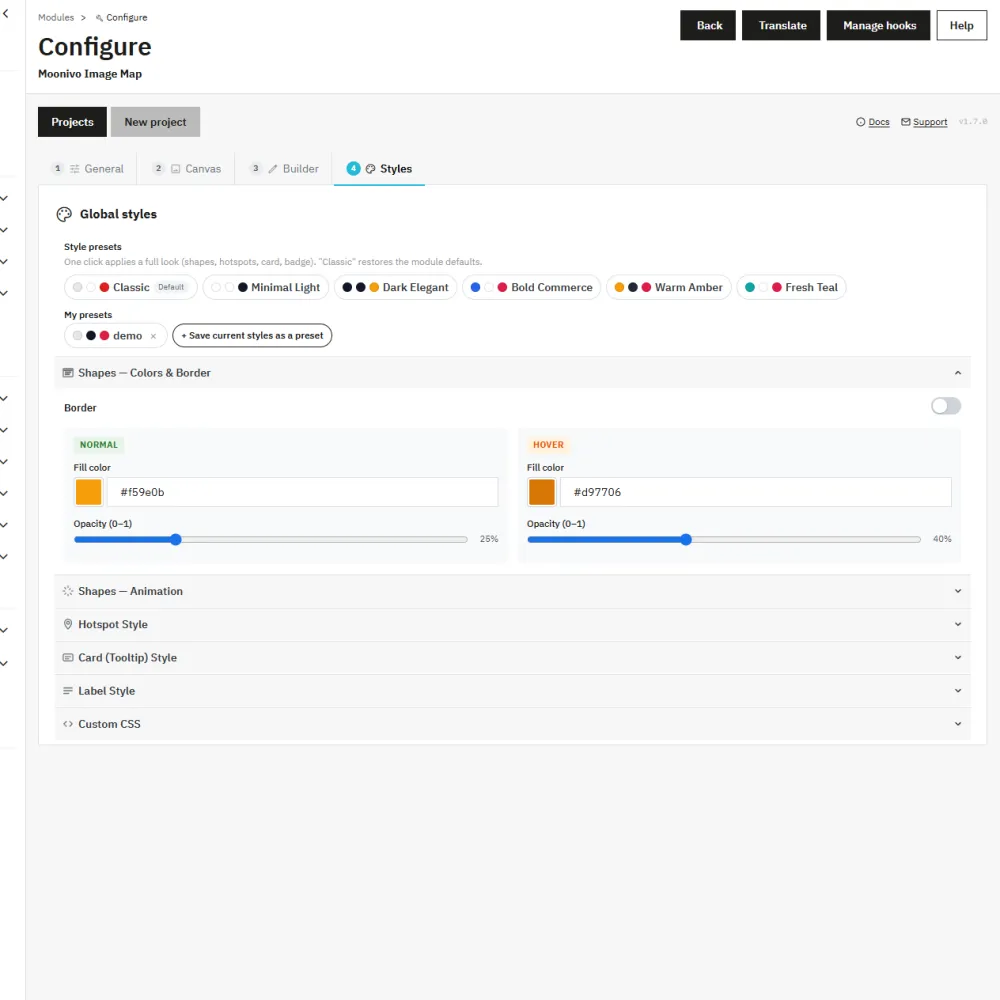
- Classic restores the module defaults, so it doubles as a reset.
- When you create a new project, the presets are highlighted so you can start from a good base.
- + Save current styles as a preset stores your own look under My presets, per shop. Saving with an existing name updates it; × deletes it.
- Applying a preset first remembers your current styles: the Previous styles chip switches back, so a click by mistake is always reversible.
Presets change colours only for the scene switcher; its navigation, position and animation stay as they are.
Global styles
Below the presets, Global styles is organised in panels:
| Panel | What it styles |
|---|---|
| Shapes — Colors & Border | Fill and hover fill, opacity and hover opacity, and an optional border (Border enabled) with its colour and opacity. |
| Shapes — Animation | The default animation of shapes. |
| Hotspot Style | Dot size, colours and animation: pulse, ripple, ping, breathe, beat or bounce, with speed and intensity. |
| Card (Tooltip) Style | Card colours, border, font, radius and position; buttons; sale badge and old price; product picture; max height; scrollbars; product list; filter chips; A/B test. |
| Label Style | Text labels shown on shapes. |
| Scene Switcher | See Scenes. |
| Custom CSS | CSS that applies to this project only. |
Per-shape styles
In the shape inspector:
- Styles → Custom colors overrides fill, hover fill, opacity and border for one shape; Reset styles returns it to the global look.
- Basic → Shape opacity and, for hotspots, Size (radius).
- Label adds visible text on the shape, with quick presets (Minimal, Outline, Dark pill, Light pill, Badge, Banner) or a fully custom style.
- Card → Per-shape tooltip style changes one card's background, text colour and radius.
Note
Shapes have no border unless Border enabled is on in the global styles, or the shape's own custom colours set one.
Reveal animation
Under Styles → Reveal in the shape inspector, Appear can be Immediately, After a delay or When scrolled into view, with a delay in milliseconds. The shape and its label fade in — light storytelling for campaign pages. Visitors who prefer reduced motion see everything at once.
Loading
The map reserves its space before the image loads, so the page does not jump. The optional Loading animation on the Canvas tab (on by default) shows a soft skeleton and fades the picture in.
Custom CSS
Global styles → Custom CSS applies only to this project. Every shape carries a stable data-impro-shape attribute you can target — see the developer reference.
Still stuck?
Customers get support through the PrestaShop Addons contact form, so every request is tracked.
Missing a feature or have an idea? Tell us what you need
Last updated October 8, 2026