Analytics
See which products people click, how often they add to cart, and where on the image they expected something — plus GA4 and Meta Pixel events.
The module records clicks and add-to-cart actions on your maps. No personal data is stored.
Click Analytics
The Click Analytics card on the module's configuration page summarises all maps:
- Clicks over time — a chart for the last 7, 30, 90 or 365 days.
- Total clicks, Cart conversions and Conversion rate.
- A list per project with clicks and cart additions per shape. Shape names come from Basic → Name, so name your shapes.
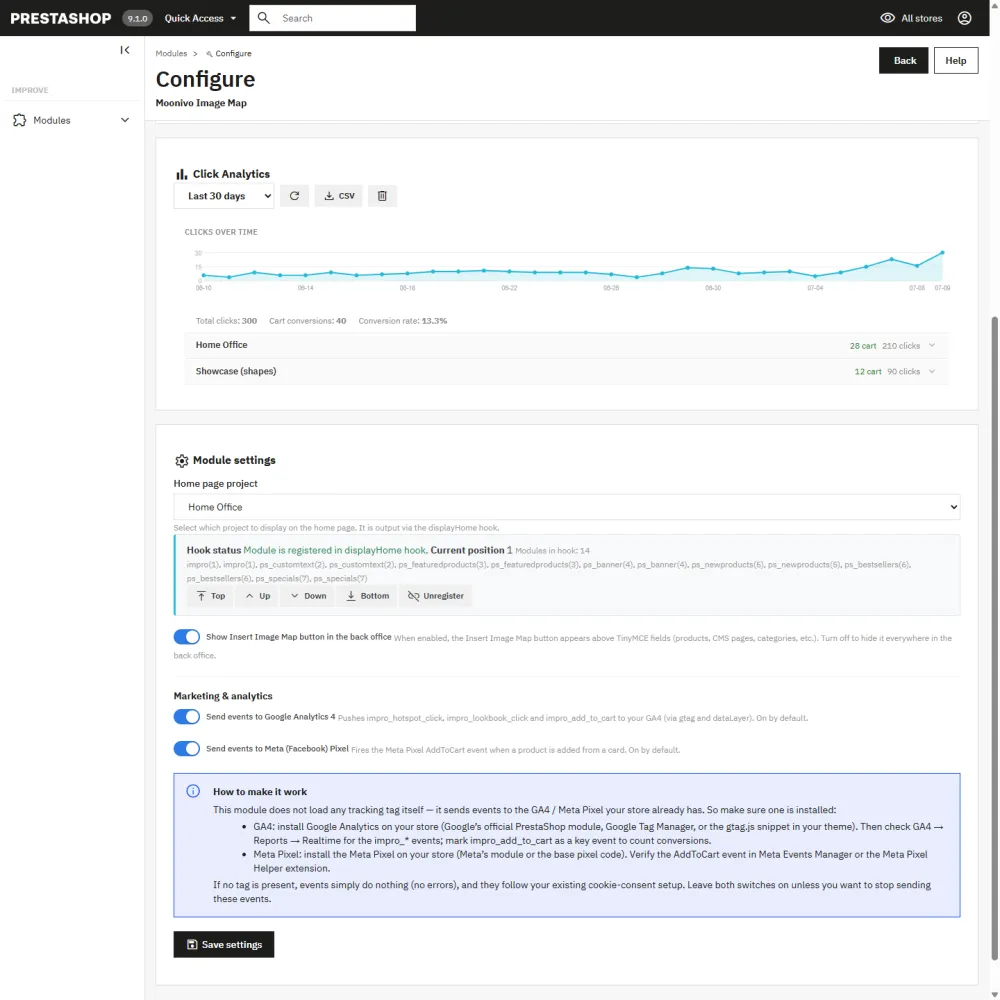
CSV downloads the clicks per project and shape. The bin icon clears all analytics data; this cannot be undone.
Heatmap and shape clicks in the editor
Two views in the Builder toolbar show the data on the image itself, for the scene you are editing:
- Heatmap — a density map of the real click positions, including clicks where there is no shape. It shows where visitors expected something clickable: a good hint for your next hotspot.
- Shape clicks — a bubble on each shape sized by its number of clicks.
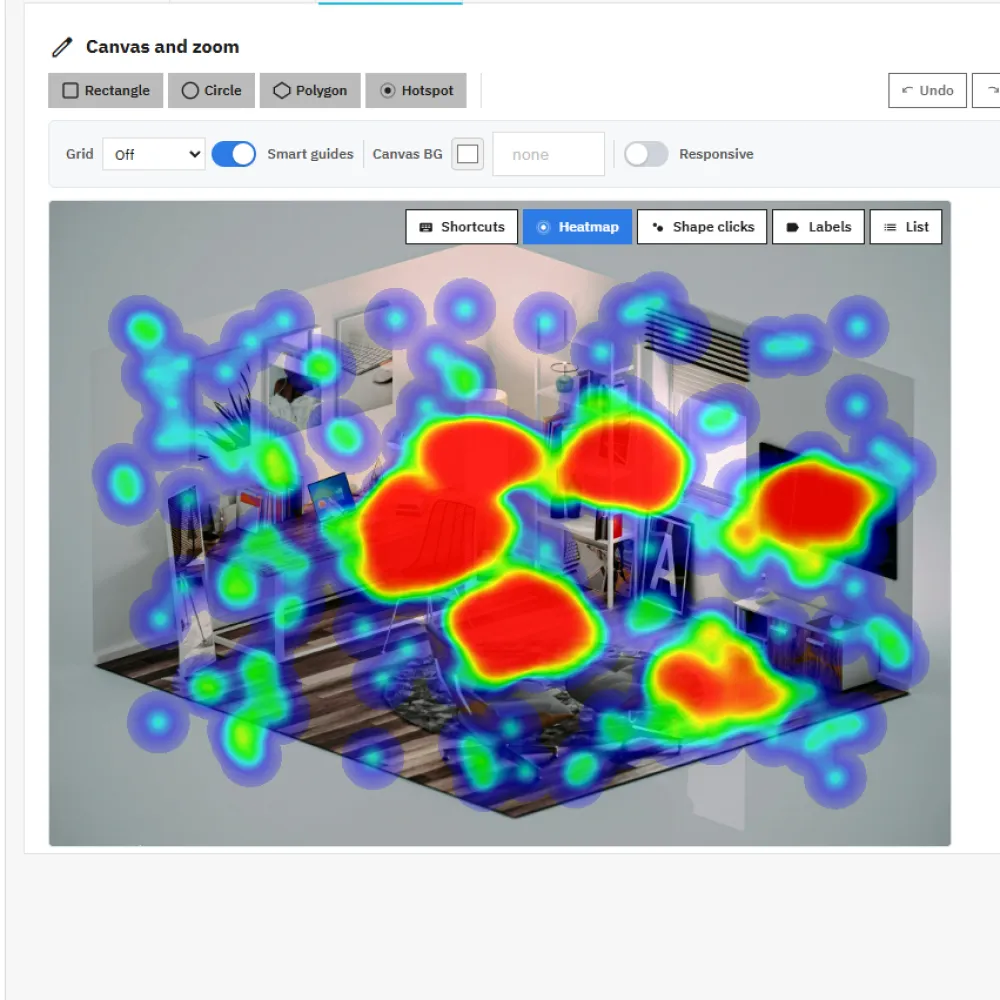
To stay light on the server, each page view records a limited number of clicks, and heatmap points older than 90 days are removed automatically.
GA4 and Meta Pixel
The map sends events to the Google Analytics 4 and Meta Pixel tags already installed on your shop. There is nothing to configure in the module, and no IDs to enter.
| Visitor action | GA4 / Google Tag Manager event | Meta Pixel |
|---|---|---|
| Clicks a shape | impro_hotspot_click |
– |
| Clicks a product list item | impro_lookbook_click |
– |
| Adds a product to the cart from a card | impro_add_to_cart |
AddToCart |
Each event carries the project, shape, label and product ID.
Connect GA4
- With gtag.js (Google's PrestaShop module or the snippet in your theme): events arrive in GA4 automatically. Check Reports → Realtime. To count them as conversions, open Admin → Events and mark
impro_add_to_cartas a key event. - With Google Tag Manager: the events are pushed to the
dataLayer. Add a Custom Event trigger for each name and fire your GA4 event tags from it.
Connect Meta Pixel
Install the Meta Pixel on your shop (Meta's module or the base code). AddToCart then fires automatically; check it in Meta Events Manager or with the Meta Pixel Helper browser extension.
Consent and switches
Because the module only uses tags you already load, your cookie consent tool applies automatically: if it blocks GA4 or the Pixel until the visitor agrees, these events wait too.
To stop sending events, turn off Send events to Google Analytics 4 or Send events to Meta (Facebook) Pixel under Module settings → Marketing & analytics. Both are on by default.
Still stuck?
Customers get support through the PrestaShop Addons contact form, so every request is tracked.
Missing a feature or have an idea? Tell us what you need
Last updated October 8, 2026