Adding a map to your shop
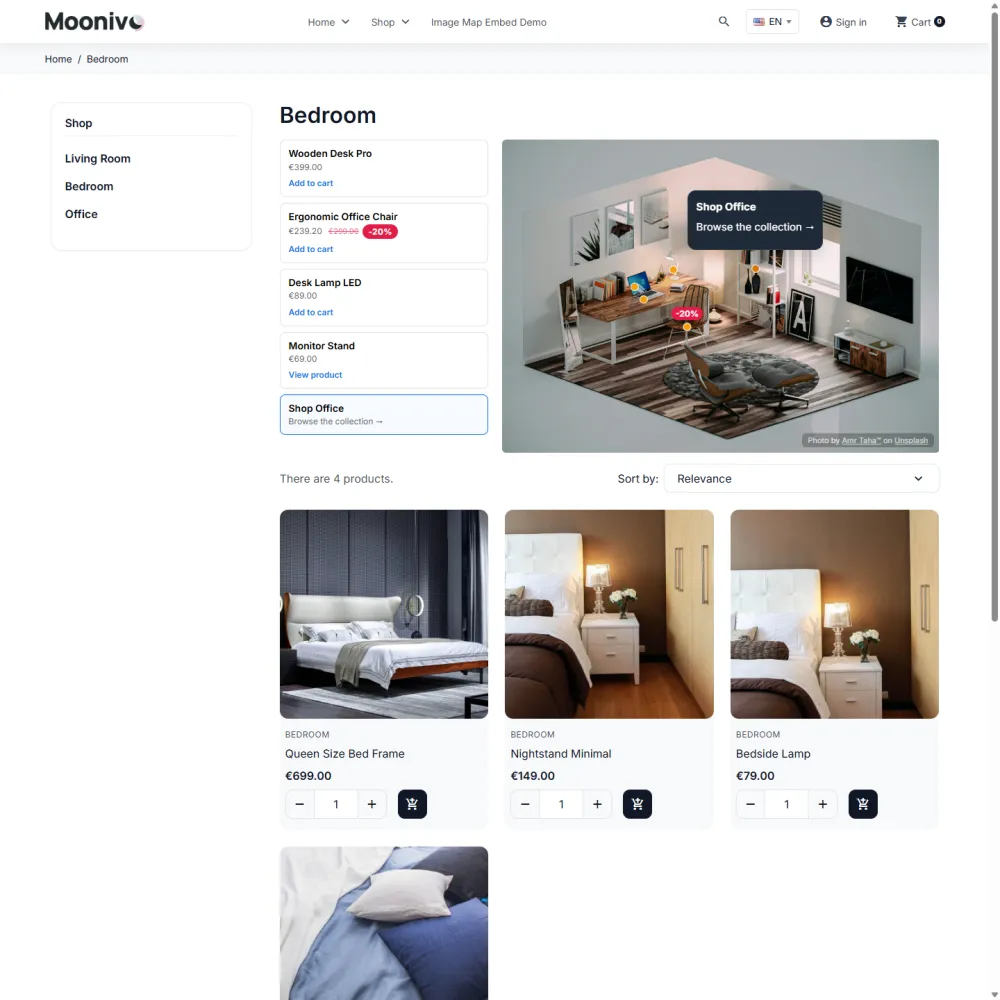
Show a map on the home page, in a CMS page, a category or product description, a theme file or an iframe.
A map is shown only when its project is enabled and has an image. Then pick where it goes:
| Where | How |
|---|---|
| Home page | Module settings → Home page project — no code needed. |
| CMS page, category or product description | Get code → Inside PrestaShop text, or the Image Map button in the text editor. |
| Theme template | Get code → Inside a theme file. |
| Another page on the same domain | Get code → As an iframe. |
Home page
- On the configuration page, scroll to Module settings.
- Choose the project in Home page project and click Save settings.
The module registers itself in the home page hook automatically. Below the setting you see its Current position among the other home page modules; move it with Top, Up, Down and Bottom. Choose -- Disabled -- to remove the map from the home page.
In a page, category or product description
- Click Get code next to the project (or on the project's General tab).
- Choose Inside PrestaShop text (recommended) and click Copy to clipboard.
- In the CMS page, category description or product description, switch the editor to source code / HTML mode and paste.
The code is a single line:
<div class="impro-embed impro-project-living-room"></div>
The map loads in the page's language and fills the width of its column. It reserves its space and starts loading the image early, so the page does not jump.
Tip
PrestaShop's text editors often remove unknown attributes when you save. That is why the recommended code keeps the project in the CSS class. If you use the second option (with extra HTML) and the map disappears after saving, switch back to the first.
The Image Map button
In text fields that use the TinyMCE editor, the module adds an Image Map button to the toolbar. Click it, enter the project slug, and a visible block is inserted that you can move or delete like any other content. Turn the button off in Module settings → Show Insert Image Map button in the back office.
In a theme template
For a fixed place in your theme — under the header, in a product page block — use a Smarty hook in a .tpl file of your child theme:
{hook h='displayImageMapPro' project='living-room'}
or by project ID:
{hook h='displayImageMapPro' id=12}
Get code offers both lines ready to copy.
As an iframe
Get code → As an iframe gives a complete, self-contained page of the map that you can frame or link to:
<iframe src="https://your-shop.com/index.php?fc=module&module=impro&controller=api&a=render&project=living-room&standalone=1"
        width="100%" height="600" style="border:0" loading="lazy" title="Image map"></iframe>
Use it on the same domain as the shop: PrestaShop does not allow framing from other domains, and add-to-cart needs the shop's session. Inside your own shop pages, the embed code above is the better choice — it is responsive and fully integrated.
The map does not show?
See Troubleshooting.
Still stuck?
Customers get support through the PrestaShop Addons contact form, so every request is tracked.
Missing a feature or have an idea? Tell us what you need
Last updated October 8, 2026