Product list and filters
Show a synced list of the map's products beside the image, and let visitors filter by category.
Product list (lookbook)
The product list shows every linked shape of the map as a list beside the image — a lookbook. It stays in sync with the picture: hovering an item highlights its shape, and hovering a shape highlights its item.
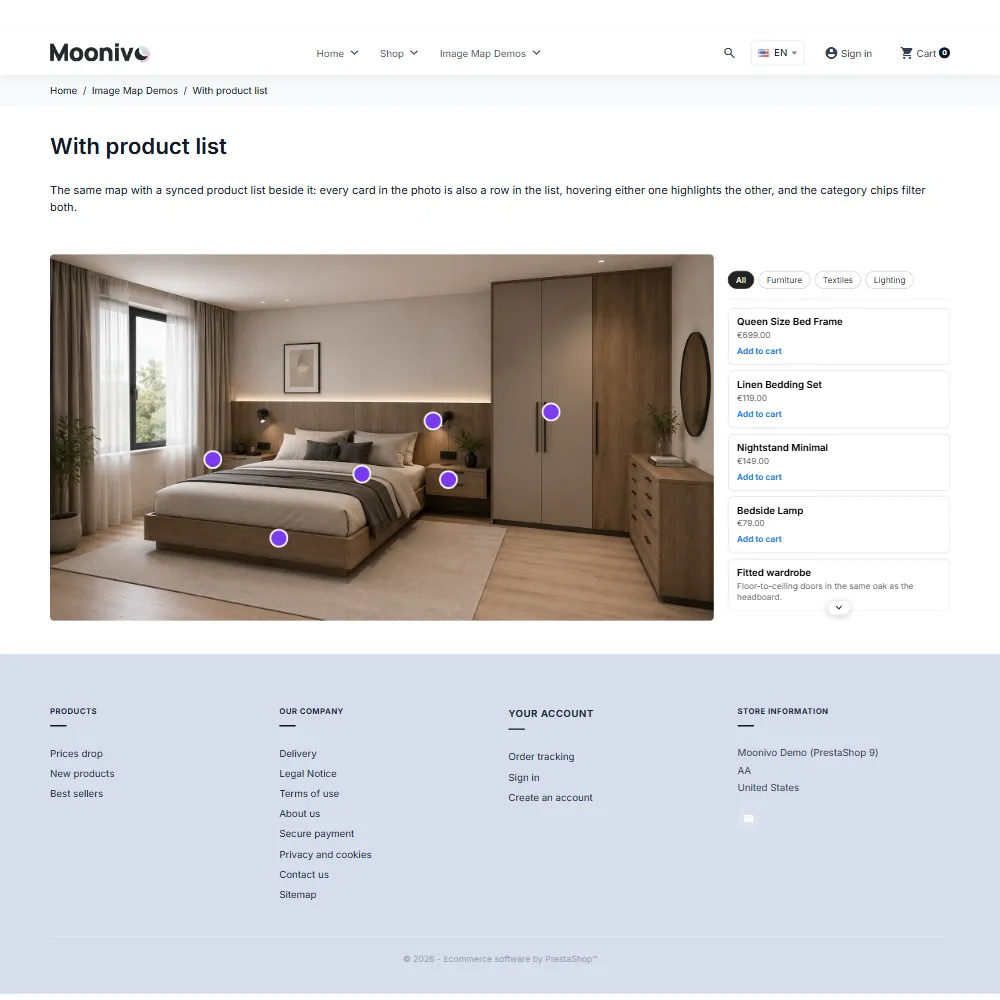
Turn it on in Styles → Card (Tooltip) Style → Lookbook (synced product list):
| Setting | Default |
|---|---|
| Show a product list beside the map | Off |
| List side | Right (or left) |
| List width | 320 px (160–600) |
| Mobile items shown | 3 (0 = all) |
How visitors use it
- Clicking an item opens and pins its card, so its buttons, variants and add-to-cart are usable. Clicking elsewhere on the map closes it; clicking the same item again follows its link.
- The list scrolls with its own arrows, or by swiping on touch screens and dragging with the mouse.
- Where the list continues, it fades out so it is clear there is more.
Narrow spaces and phones
The list sits beside the map when there is room. In a narrow column — a category description next to a filter sidebar, for example — or on a phone, it moves below the map so the picture stays a usable size. On phones it shows the first few items (Mobile items shown), the rest reachable with the arrows.
Product filters
Filters let visitors show only part of the map — just the chairs, just the lamps.
- Give shapes a Filter tag in the shape inspector (Styles panel), for example Chairs, Lamps, Tables.
- On the project's Canvas tab, turn on Product filters.
The filter bar appears once the shapes use at least two different tags. Choosing a tag shows only those shapes and their list items; the All chip clears the selection.
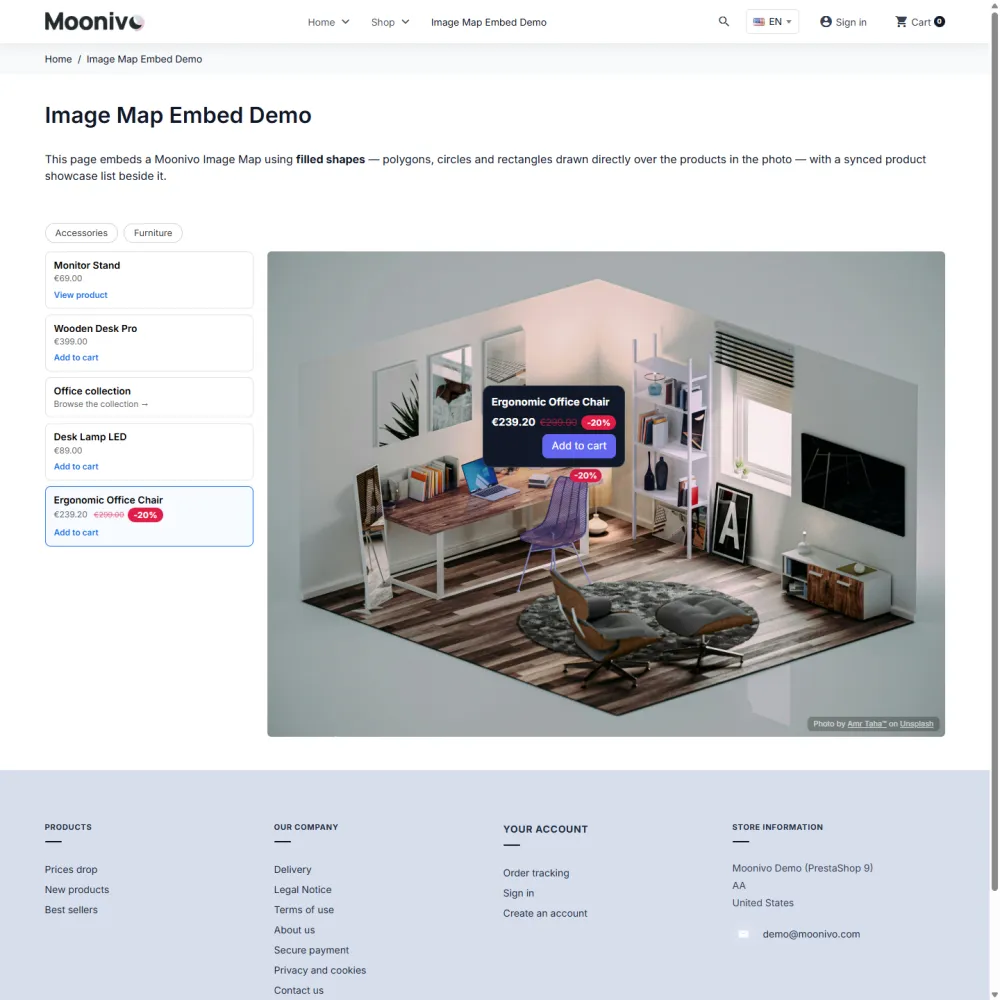
Filter tags in several languages
The filter tag is translatable. Shapes with the same tag in the default language form one filter; the other language tabs only change its label, so Chairs, Chaises and Kėdės are still a single filter.
Layout
- Styles → Card (Tooltip) Style → Filter chips layout — Wrap onto more lines (default) or One line, swipe sideways, with small arrows on desktop.
- With a product list, the chips sit at the top of the list instead of above the picture.
- With scenes, each scene shows only the tags its own shapes use, and switching scenes starts with no filter selected.
Still stuck?
Customers get support through the PrestaShop Addons contact form, so every request is tracked.
Missing a feature or have an idea? Tell us what you need
Last updated October 8, 2026