Quick start
Build your first shoppable image in about five minutes, from upload to the live shop.
This walk-through creates a room photo with one hotspot that sells a product, then puts it on your home page.
1. Create a project
- Open Modules → Image Maps and click New project.
- On the General tab enter a Name — it is for you only and is not shown to visitors.
- Leave Slug empty; a unique one is generated when you save.
- Drop an image on Main image (JPG, PNG or WebP). A wide photo of around 1600–2400 px works well.
- Click Save and stay. The Builder and Styles tabs appear once the image is uploaded.
2. Draw a hotspot
- Open the Builder tab.
- Pick Hotspot in the toolbar and click the product in the photo.
- The shape inspector opens on the right. Under Basic → Name call it, for example, Lounge chair — the name is used in analytics.
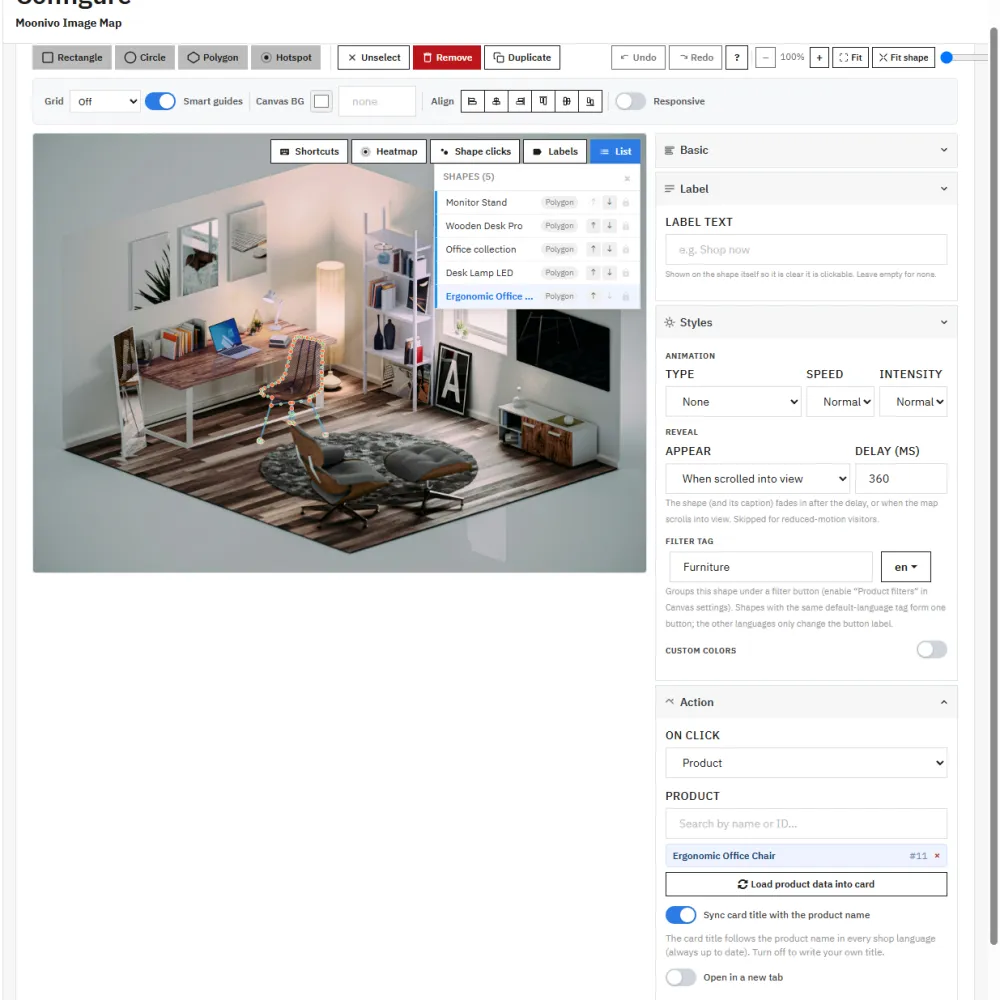
3. Link it to a product
- Open the Action panel and set On click to Product.
- Search for the product by name or ID and select it.
- Click Load product data into card. The card gets the product's name and short description in every language.
- Keep Sync card title with the product name on, so the card always shows the current catalogue name.
4. Turn on the card
- Open the Card panel and switch on Tooltip card.
- Optionally set Button text and turn on Add product to cart instead of opening the link.
Product cards show the live price, sale badge and stock automatically. More options are in Actions and cards.
5. Preview and publish
- Click Preview in the bottom bar to see the map in your theme, at desktop, tablet and mobile widths. The preview includes unsaved changes.
- On the General tab set Project enabled to Yes, then click Save.
- Back on the configuration page, under Module settings, choose your project as the Home page project and click Save settings.
Open your home page: the map is there. To place it anywhere else, click Get code in the projects list — see Adding a map to your shop.
Where next
- Make it look like your brand with a style preset.
- Add more rooms with scenes.
- Show a product list and filters beside the image.
- See what visitors click in Analytics.
Still stuck?
Customers get support through the PrestaShop Addons contact form, so every request is tracked.
Missing a feature or have an idea? Tell us what you need
Last updated October 8, 2026