Mobile and tablet
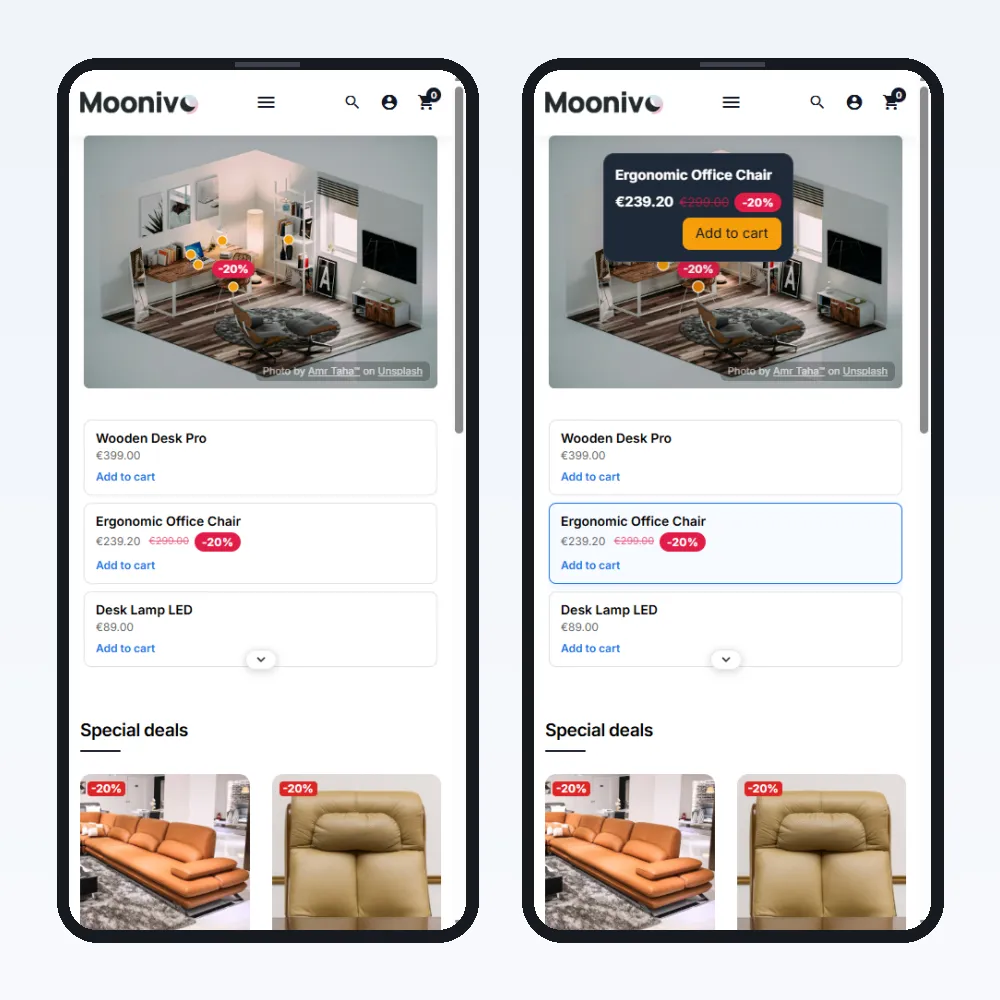
Make maps work on every screen with separate images, per-device positions and visibility.
Maps are responsive out of the box: shapes scale exactly with the image, and hotspot dots, badges and labels keep a readable size on small screens. For more control, turn on Responsive in the Builder toolbar.
Responsive editing
Switching Responsive on shows a Desktop / Tablet / Mobile preview row in the Builder. Edit on Desktop first, then check the smaller sizes. Show hidden displays shapes that are hidden on the current device.
A separate image for tablet and mobile
A wide banner becomes a thin strip on a phone. Upload a different crop for smaller screens:
- Turn on Responsive and choose Tablet or Mobile.
- In the Breakpoint image bar, click Upload image.
- Click Fit shapes to move all shapes onto the new image, then fine-tune.
Remove goes back to the main image on that device.
Per-device position, size and visibility
With Responsive on, the shape inspector's Basic panel adds:
- Visibility — show the shape on Desktop, Tablet and/or Mobile.
- Per-device position & size — move (X/Y) and scale the shape on tablet and mobile, relative to its desktop position.
Limitation
Breakpoint images and per-device visibility apply to the first scene of a project. See Scenes.
Still stuck?
Customers get support through the PrestaShop Addons contact form, so every request is tracked.
Missing a feature or have an idea? Tell us what you need
Last updated October 8, 2026