Scenes
Put several images in one map — rooms, angles or variants — and let visitors switch between them.
A project can hold several scenes, each with its own image and its own shapes. Visitors switch between them on the page — perfect for a Kitchen / Bedroom / Living room set, product angles or colour variants, without building separate maps.
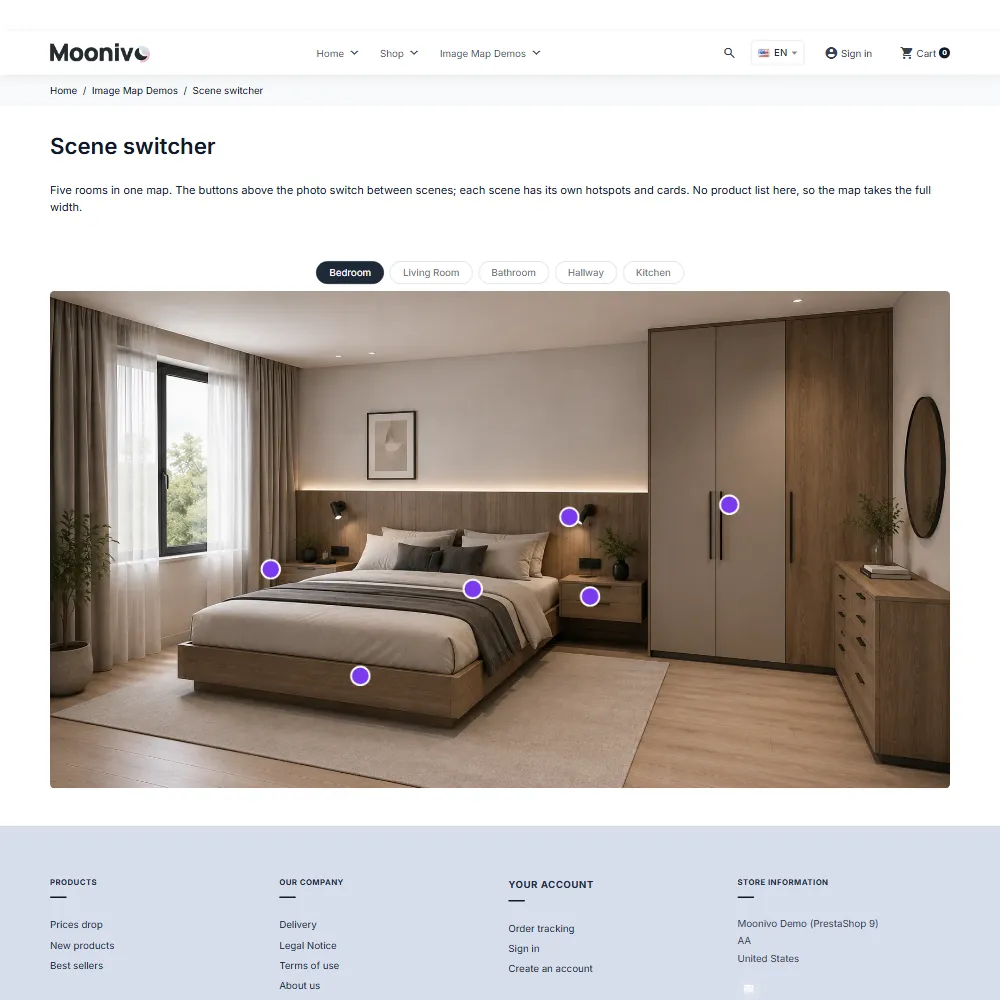
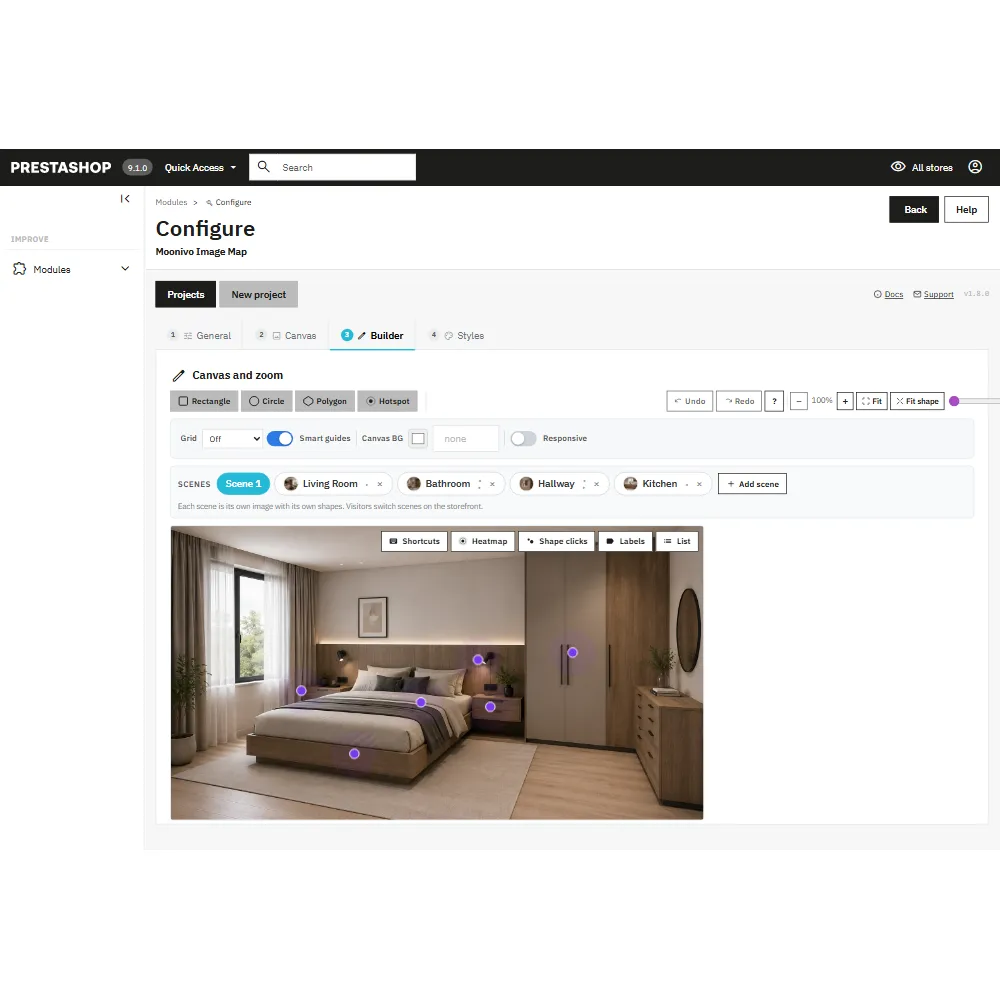
Add and manage scenes
Scenes are managed in the strip above the canvas in the Builder tab. Save a new project once before adding scenes.
- + Add scene — creates Scene 2, Scene 3 and so on; upload its image.
- Rename — double-click a scene's tab.
- Reorder — the ◂ ▸ buttons.
- Delete — the × button. The project's main image is always the first scene and cannot be deleted.
Click a tab to edit that scene on the canvas. As everywhere in the editor, nothing is saved until you press Save.
Note
Until you rename the first scene, its label in the switcher is the project name. Double-click it to give it a proper name such as Living room.
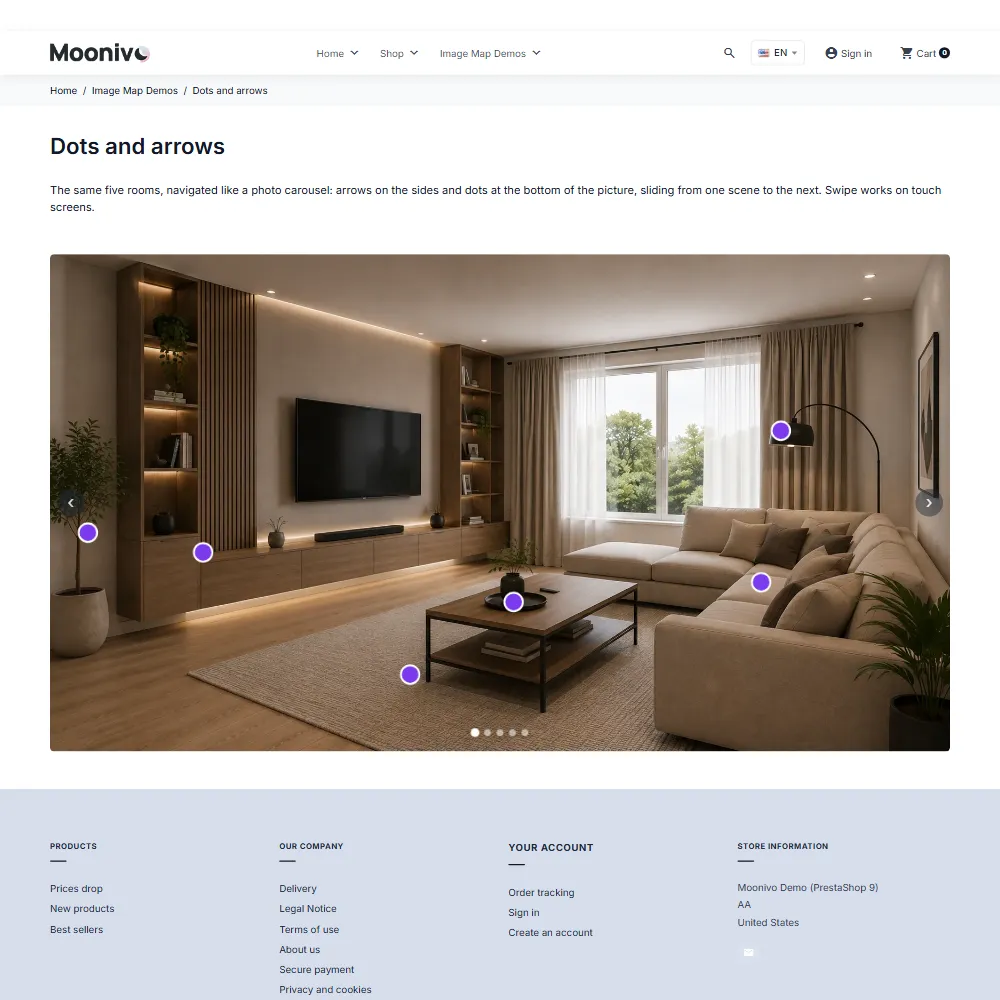
Style the switcher
Styles → Scene Switcher controls how visitors move between scenes. These settings apply only to projects with more than one scene.
| Setting | Options |
|---|---|
| Navigation | Buttons, Tabs (segmented bar), Arrows, Dots, or Buttons + arrows, Tabs + arrows, Arrows + dots. |
| Tab indicator | For tabs: slides to the tab, fades across, or no movement. |
| Animation | Slide, fade or none, at a slow, normal or fast speed. |
| Button position | Above or below the image, or over the image in one of six spots — any corner, top center or bottom center. The default is top center, over the image. |
| Colours | Scene buttons, the active scene, arrows and dots. |
Applying a style preset recolours the switcher to match; your navigation type, position and animation are left as they are. Long scene names are shortened with "…" and shown in full on hover.
Everything works per scene
The product list, filters, reveal animation, marketing events and live prices all follow the scene on screen, with no extra setup. Each scene's product list and filters show only that scene's products; switching scenes starts with no filter selected.
Analytics record which scene a click happened on, and the editor's heatmap and Shape clicks views show data for the scene you are editing. Scenes are included in duplicate, export, import, backup and restore.
Visitors
Visitors switch scenes with the buttons, by swiping on touch screens, or with the arrow keys when the switcher has focus. Transitions are skipped for visitors who prefer reduced motion.
Limitation
Separate tablet and mobile images, and per-device shape visibility, apply to the first scene only. The Responsive toggle is disabled while you edit another scene.
Still stuck?
Customers get support through the PrestaShop Addons contact form, so every request is tracked.
Missing a feature or have an idea? Tell us what you need
Last updated October 8, 2026