Guides · · 3 min read
How to build a lookbook in PrestaShop: product list, filters and several rooms
A lookbook in PrestaShop that sells, not just shows. Put a synced product list beside the photo, add filters like Chairs or Lamps, and let visitors switch between rooms in one map.

A lookbook is a set of styled photos that show products the way people will use them. In most PrestaShop stores it ends up as an image gallery: nice to scroll, impossible to buy from.
This guide turns a lookbook into a working sales page with three pieces: a product list that sits beside the photo and stays in sync with it, filters that narrow the products by type, and scenes that put several rooms or outfits into one map. It builds on the shop-the-look guide, so start there if you have not tagged a photo yet.
The product list: the lookbook beside the photo
The product list shows every linked product of the map as a list next to the image. It is synced both ways: hover an item in the list and its spot lights up in the photo; hover a spot and its item lights up in the list.
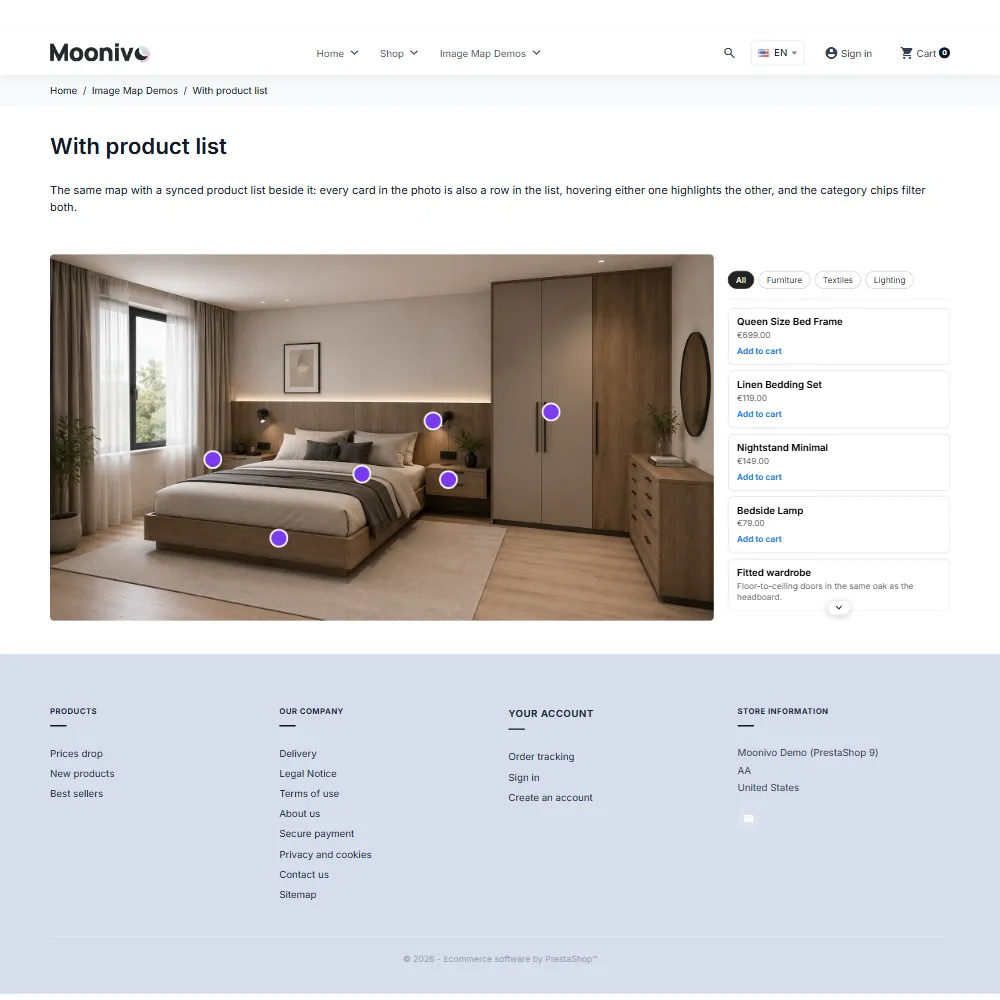
Turn it on in Styles → Card (Tooltip) Style → Lookbook (synced product list):
- Show a product list beside the map: on.
- List side: right or left.
- List width: 320 px by default.
- Mobile items shown: how many items phones show before the arrows, 3 by default.
Clicking an item in the list opens and pins its card, so the price, variants and Add to cart are right there. The list scrolls with its own arrows, by swiping on touch screens or by dragging with the mouse.
On narrow pages, for example a category description beside the filter sidebar, or on a phone, the list moves below the photo so the picture stays a usable size.
Filters: just the chairs, just the lamps
A room photo can easily hold ten products. Filters let visitors focus on the kind they came for.
- In the editor, give each shape a Filter tag, such as Chairs, Lamps or Tables.
- On the project's Canvas tab, turn on Product filters.
A row of filter chips appears once the photo uses at least two different tags. Choosing Lamps shows only the lamps, in the photo and in the list; All brings everything back.
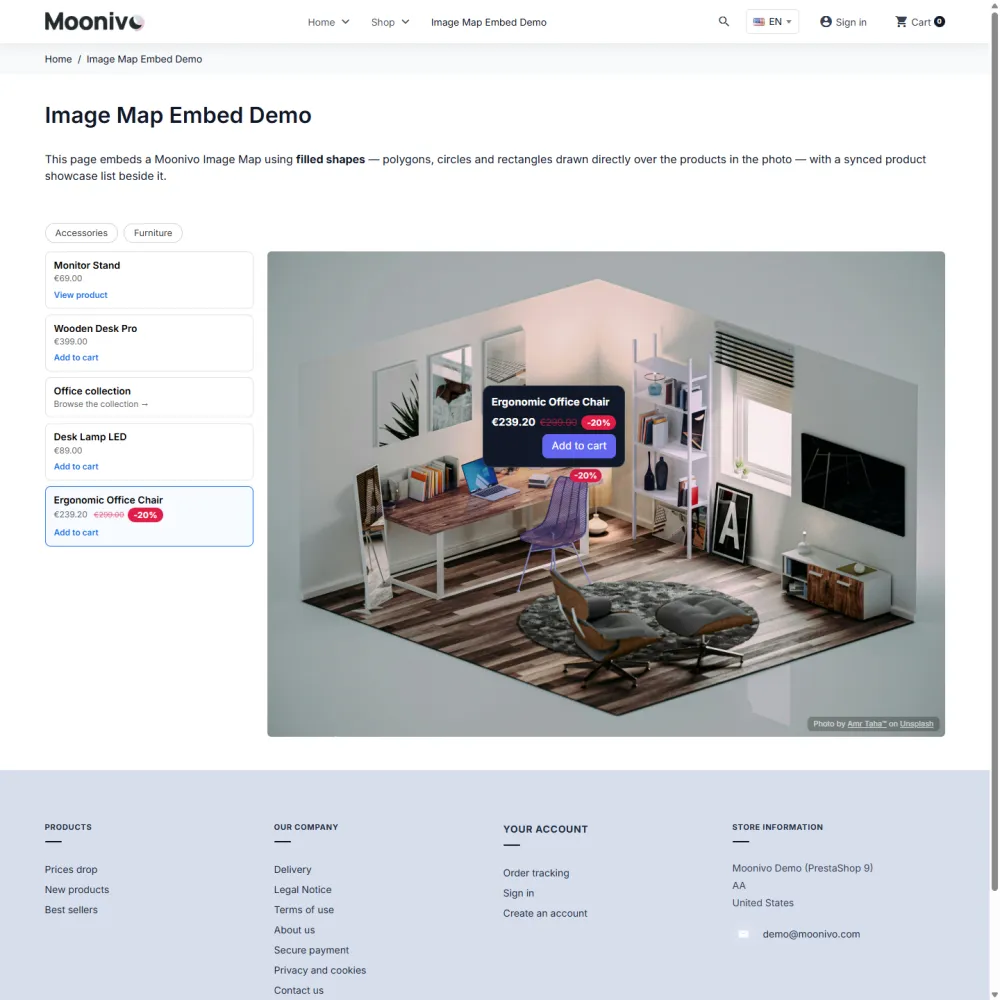
If your store runs in several languages, translate the tag on each language tab. Chairs, Chaises and Kėdės stay one filter; only the label changes.
Scenes: several rooms in one lookbook
A lookbook rarely has one photo. Instead of building a separate map for each, add scenes: each has its own image and its own hotspots, and visitors switch between them on the page.
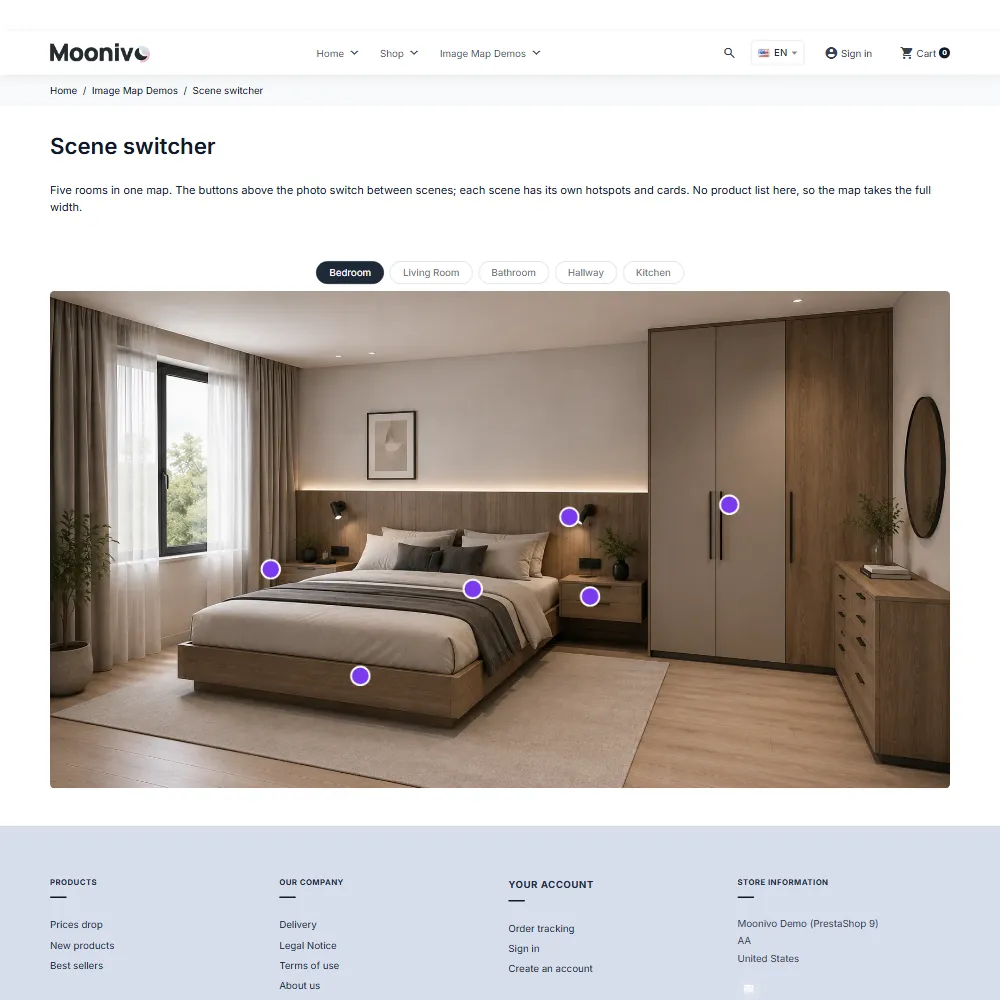
- Save the project once, then in the Builder tab click + Add scene and upload the next photo.
- Double-click a scene's tab to name it, for example Living room, Bedroom, Kitchen.
- Tag the products on each scene as before.
In Styles → Scene Switcher choose how people move between scenes: buttons, a tab bar, arrows, dots or a mix, above, below or over the image, with a slide or fade animation. On phones they can also swipe.
The product list and filters follow the scene on screen: each scene lists only its own products and offers only the tags it uses.
Make the whole look easy to buy
Two settings turn browsing into a basket:
- Add to cart in the card. Set a button text and turn on Add product to cart instead of opening the link. Variants appear as swatches and drop-downs.
- Add all to cart. The Multi-product showcase field puts several products in one card with an Add all to cart button: the whole outfit, the whole reading corner.
Seasonal lookbooks without extra work
Lookbooks are often seasonal. Under Schedule on the project's Canvas tab you set Show from and Show until, so the autumn lookbook switches itself on and off. And if you are unsure which photo or layout sells better, an A/B test splits visitors between two versions of the map, and their clicks and add-to-cart conversions show up separately in the analytics.
A checklist before you publish
- Every product in every scene is tagged and linked.
- Filter tags are consistent: Lamps everywhere, not Lamp on one scene.
- The list and filters look right in the preview at phone width.
- Scenes have real names, not Scene 2.
- The project is enabled and placed: on the home page, in a CMS page or in a category description.
Try it
The live demo has lookbooks with product lists, filters and scenes to click through, and the demo back office lets you build one. Moonivo Image Map works on PrestaShop 1.7 to 9.1; the documentation covers the product list and filters and scenes in full.