Guides · · 4 min read
How to add shop-the-look hotspots to a PrestaShop store
Turn a room or outfit photo into a shoppable image in PrestaShop, with hotspots that open product cards with live prices and add to cart. Step by step, in about ten minutes.

Your best photos are probably your least useful pages. A styled living room, a model in the new collection, a campaign banner: people look at them, like what they see, and then have to search the catalogue for each item. Many never do.
A shop-the-look image fixes that. Every product in the photo gets a small dot. Click the dot and a card opens with the product's name, live price, variants and an Add to cart button, right on the picture. This guide shows how to build one in PrestaShop 1.7, 8 or 9.
What you need
- A PrestaShop store (1.7 to 9.1).
- The Moonivo Image Map module. You can try the editor in the demo back office before buying.
- A wide photo, around 1600–2400 px across, in JPG, PNG or WebP. Lifestyle shots with several clearly visible products work best.
1. Create a project and upload the photo
In the back office open Modules → Image Maps and click New project. A project is one image map.
- On the General tab give it a Name, for example Living room — autumn. Visitors never see it.
- Leave the Slug empty; one is generated when you save.
- Drop the photo on Main image and click Save and stay.
The Builder and Styles tabs appear once the image is uploaded.
2. Mark the products with hotspots
Open the Builder tab, pick Hotspot in the toolbar and click a product in the photo. A pulsing dot appears and the shape inspector opens on the right.
Give the hotspot a Name such as Lounge chair. Visitors do not see it either, but it is what you will read later in the click statistics, so make it recognisable.
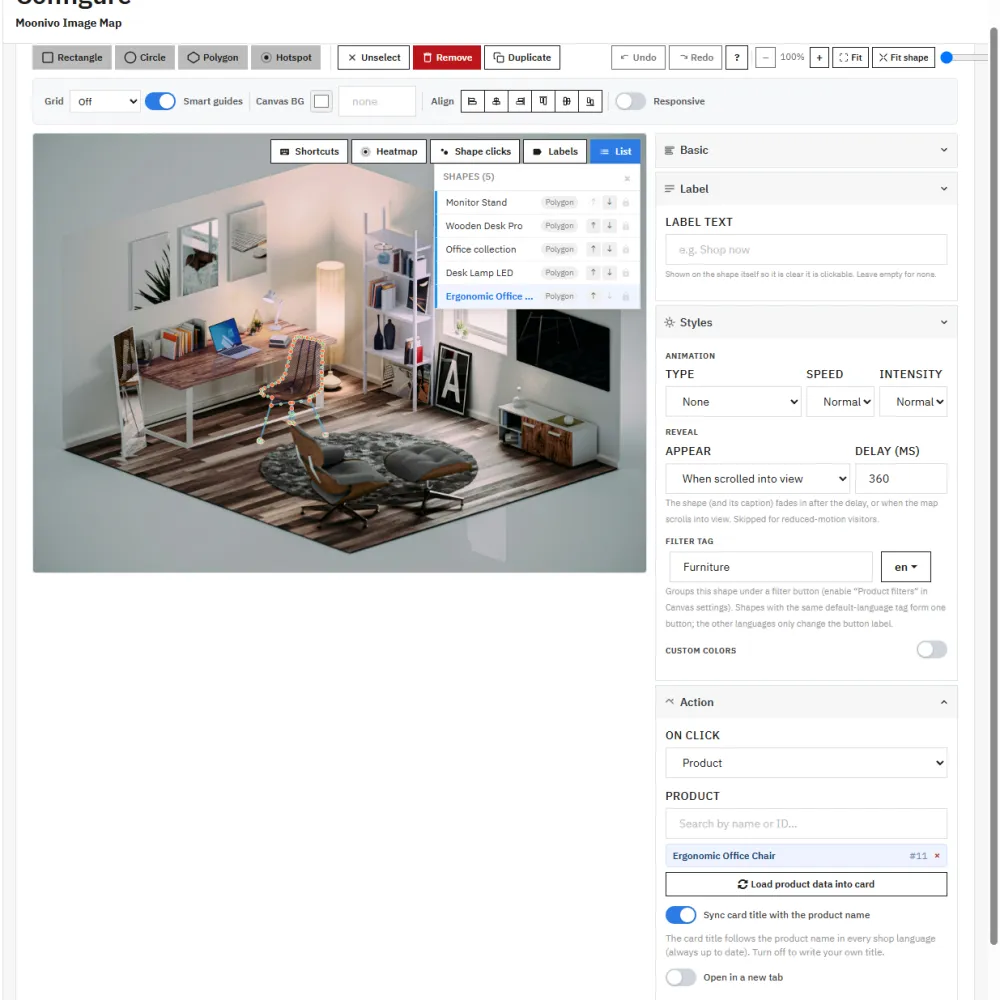
Hotspots are the classic shop-the-look marker. If a product should be clickable as a whole area instead, say a sofa or a rug, draw a rectangle, circle or polygon around it.
3. Link each hotspot to a product
In the Action panel set On click to Product, then search for the product by name or ID.
Two helpers save a lot of typing:
- Load product data into card fills the card with the product's name and short description, in every language of the shop at once.
- Sync card title with the product name keeps the card title equal to the catalogue name. Rename or translate the product later and the map follows.
4. Turn on the product card
Open the Card panel and switch on Tooltip card. From here the card shows the live price in the visitor's currency, with tax and discounts applied. When the product is on sale, the old price is struck through and a sale badge appears.
To let people buy without leaving the page, set a Button text such as Add to cart and turn on Add product to cart instead of opening the link. The card uses PrestaShop's own cart, so your theme's cart counter and confirmation pop-up work as usual. If the product has combinations, the card shows colour swatches and size drop-downs, and the chosen variant goes to the cart.
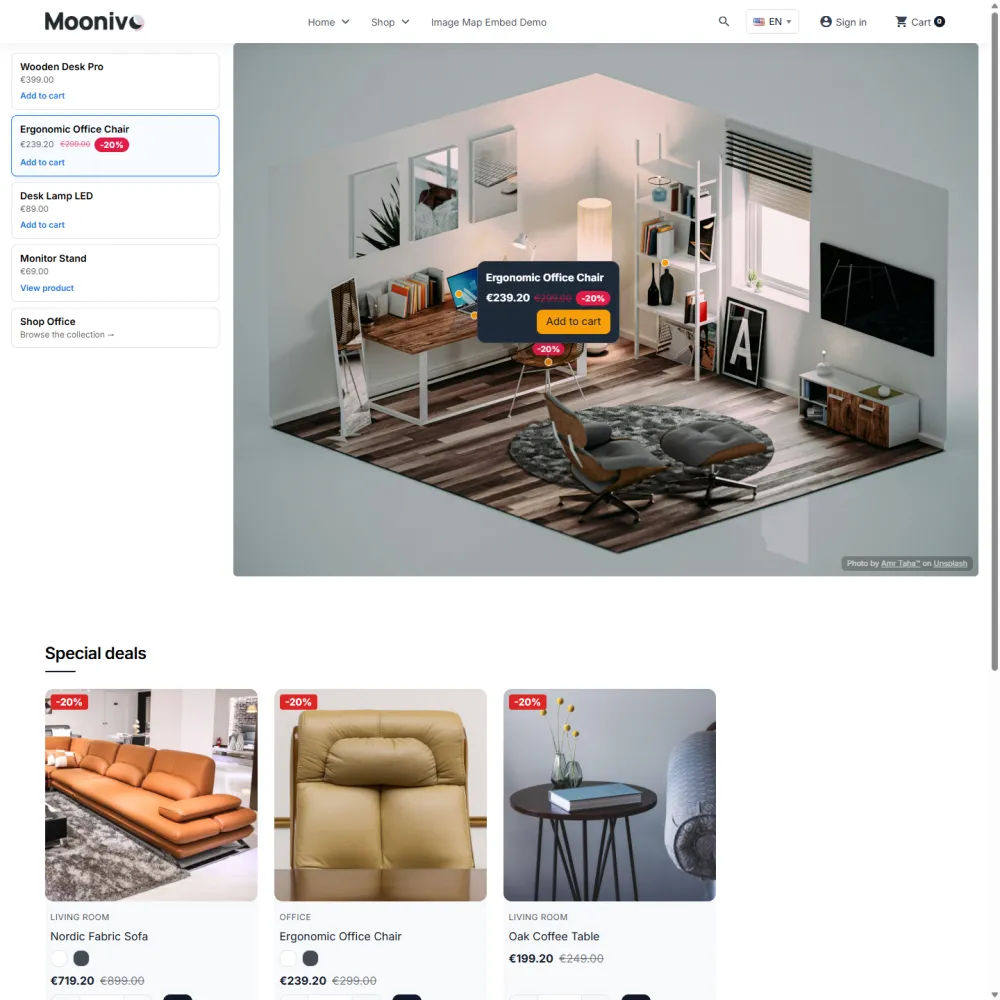
Repeat steps 2–4 for every product in the photo.
5. Sell the whole look in one click
Shop-the-look works best when the set can be bought together. The Multi-product showcase field turns one card into a small shop: pick several products and the card lists each with its thumbnail, price and its own Add to cart button, plus one Add all to cart for the whole set.
For a bigger set, turn on the synced product list beside the image; see how to build a lookbook with a product list and filters.
6. Preview, publish and place it
Click Preview in the bottom bar to see the map inside your theme at desktop, tablet and phone widths. When it looks right, set Project enabled to Yes and save.
Then choose where it goes:
| Where | How |
|---|---|
| Home page | Module settings → Home page project, no code needed. |
| A CMS page, category or product description | Get code → Inside PrestaShop text, paste it in the editor's HTML mode. |
| A fixed place in the theme | Get code → Inside a theme file, a one-line hook. |
The map reserves its space while the image loads, so the page does not jump.
7. See what people click
After a few days, open Click Analytics on the module's page: clicks over time, add-to-cart conversions and the numbers for every hotspot. In the editor, the Heatmap view draws the real click positions over the photo, including places where people clicked but found nothing. That is usually the next product worth tagging. If you use GA4 or Meta Pixel, the module sends its events through the tags your shop already loads.
Tips for photos that sell
- One clear story per photo. A complete room or outfit sells better than a crowded collage.
- Tag everything you sell in the shot. An untagged lamp is a question nobody answers.
- Keep the dots off faces and key details. Place them on the product, not over it.
- Use the same photos as your campaigns. People recognise them from ads and newsletters, and now they can buy from them.
Try it
Click around the live demo to see shop-the-look maps from a visitor's side, or open the demo back office and build one yourself. When you are ready, Moonivo Image Map works on PrestaShop 1.7 to 9.1, and the full quick start covers every setting.